
Wiki
Install on Windows
One PowerShell line: activation code, PostgreSQL via winget, Windows service, firewall, TLS certificate.
Windows 10, 11 or Windows Server 2019+ (x64). Installation with a single PowerShell line.
Install
1. Open PowerShell as Administrator
Right-click the PowerShell icon → Run as administrator. The script refuses to run otherwise, and tells you so.
2. Paste the install command
A single line, to paste as-is into the window you just opened:
iwr https://uversion.io/downloads/server/install.ps1 -UseBasicParsing | iexThe script then runs, before your eyes:
- the prompt for the activation code, the only question asked: see the next step
- the download of the binary and the verification of the archive
- the installation of PostgreSQL via
wingetif it is missing (about 2 minutes) - the creation of the database, the role and the Windows service, and the opening of the firewall (8443, plus 8080 as a fallback)
- the registration of the Programs and Features entry
- the start of the service, the generation of the self-signed TLS certificate, then the display of the administrator password and the certificate's SHA-256 fingerprint
Everything happens in your PowerShell window, you see every step. It is
the Windows equivalent of Linux's sudo apt install.
3. Enter the activation code
This is the only question asked: every other choice goes through
parameters, described below. The field accepts three forms: the short code
UV-XXXX-XXXX-XXXX, a path to a file containing your full licence key,
or that key pasted directly. With the first form only, the script contacts
licence.uversion.io to exchange the code for the key.
4. Note the closing summary
The installation ends on a box: admin username, temporary password,
server address and certificate fingerprint. Note them down.
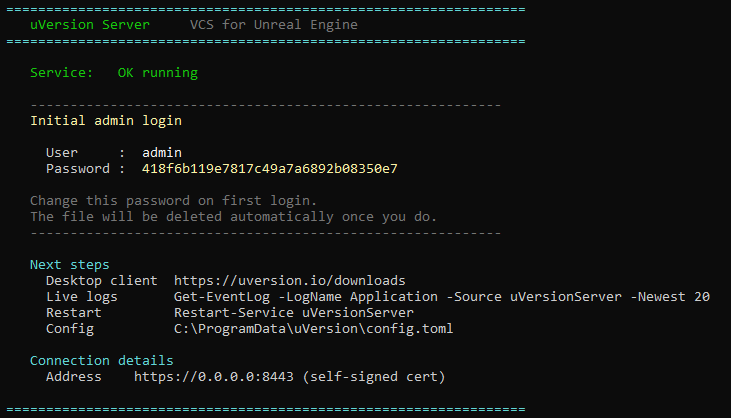
If the window was closed too quickly, the password is still on disk as long as it has not been changed:
Get-Content "C:\ProgramData\uVersion\initial-admin-password"This file disappears as soon as you change the password: a "Cannot find path" error therefore means the change has already happened.
You can then follow First login.
Windows Server 2019 and 2022: PostgreSQL first
winget does not exist on Windows Server 2019 nor on
Windows Server 2022. The script then stops dead, with a message that tells you so
explicitly. This is not a failure: first install
PostgreSQL 16
by hand, then re-run the same command. The script detects the existing PostgreSQL service
and uses it instead of installing one.
Non-interactive variant (CI, scripted deployment)
The short form iwr ... | iex cannot receive
any parameter: it runs the script without passing it any arguments,
and a -DataDir added at the end would be silently ignored. As soon as you want to
pass an option, use the form below, which builds an explicit script block.
& ([scriptblock]::Create((iwr https://uversion.io/downloads/server/install.ps1 -UseBasicParsing).Content)) `
    -LicenceKey "UV-XXXX-XXXX-XXXX" -DataDir "D:\uVersion" -DbOnDataDir
The nine accepted parameters:
| Parameter | Default | Role |
|---|---|---|
-LicenceKey | (prompted) | Activation code, or full licence key. Skips the question. |
-InstallDir | C:\Program Files\uVersion |
Where the binary lands. |
-DataDir | C:\ProgramData\uVersion |
Where your data, the configuration and the secrets land. It is the folder that grows, so the one to place on your large disk. |
-DbOnDataDir | disabled | Also places the PostgreSQL database in the data folder, so that a single surviving disk is enough to rebuild the server. See the box below. |
-Port | 8080 |
Fallback port in plain HTTP, used only if you disable TLS in the configuration. The normal HTTPS port is 8443. |
-BindAddress | 0.0.0.0 |
Listening interface. The default listens on all of them. |
-DownloadUrl | uversion.io | Source of the archive. Change it to install from an internal mirror. |
-Reconfigure | disabled | Rewrites config.toml even if it already exists. |
-Update | disabled | Updates the binary of an existing installation and restarts the service, without touching PostgreSQL, the licence or the configuration. This is what the "Update" button in the admin panel triggers. |
-DbOnDataDir decides whether a single disk is enough to bring
your server back. Without it, the PostgreSQL database stays separate: if the machine dies, the
surviving data disk holds the content of your files, but no revision,
no account, no lock and no permission any more. With it, a single disk plus PostgreSQL and
this script are enough to rebuild the server elsewhere. Trade-off: that disk then also carries
the licence key and the passwords, and the database can only be reopened by the major
version of PostgreSQL that created it.
Where the files go
Everything lives in the data folder, C:\ProgramData\uVersion by default:
the configuration (config.toml), the content of your versioned
files (data\chunks), the TLS certificate and its fingerprint
(data\tls), and the initial administrator password.
This folder also contains three secrets in clear text:
licence-key (your licence key), db-password (the password of
the uVersion database) and postgres-superuser-password (that of the PostgreSQL
administrator account). They are protected by permissions reserved for administrators. Treat
this folder like a vault: do not copy it to an open network share, and wipe these
files before a disk leaves your control.
After any manual change to config.toml, restart the service so that it
is applied:
Restart-Service uVersionServerVerify the installation
Four independent checks. Replace C:\ProgramData\uVersion with your
data folder if you chose a different one.
1. The service is running
Get-Service uVersionServerExpected: Status: Running.
2. The server listens on HTTPS on 8443
Get-NetTCPConnection -LocalPort 8443 -State ListenOne line should appear. Nothing at all while the service is running usually means that TLS was disabled in the configuration: the server then switches to plain HTTP and 8443 no longer listens.
3. Show the certificate fingerprint again
Get-Content "C:\ProgramData\uVersion\data\tls\fingerprint"This is the fingerprint that each workstation confirms on its first connection.
4. Re-read the active configuration
Get-Content "C:\ProgramData\uVersion\config.toml"If the service refuses to start, the most direct way to see why is to launch the binary in the foreground: the startup errors then appear directly in your window. It is in fact the command that the install script itself suggests when it detects the failure.
$env:CONFIG_PATH = 'C:\ProgramData\uVersion\config'
& 'C:\Program Files\uVersion\uversion-server.exe'
Then stop with Ctrl+C, then Start-Service uVersionServer. If the service does
not even start far enough to produce an error, the Windows Event Viewer
(eventvwr.msc) records it in the System log, source
Service Control Manager. Do not look there for an application log named
uVersion: the server writes to its standard output, it does not register a Windows
event source, so a command such as
Get-EventLog -Source uVersionServer will never return anything.
Uninstall
Two equivalent ways. Both run the same script
(uninstall.ps1), which handles the service, the firewall, the machine
environment variable, the data folder, the binary, the Programs and
Features entry, and the PostgreSQL database.
Method 1: via Programs and Features
- Win+R →
appwiz.cpl→ Enter - Find uVersion Server in the list
- Right-click → Uninstall
- An administrator PowerShell window opens and runs the script visibly
Method 2: via PowerShell as Administrator
iwr https://uversion.io/downloads/server/uninstall.ps1 -UseBasicParsing | iexThe script shows your two paths at startup, then a verification block at the end: you should see "OK absent" in green for the service, the installation folder, the data folder and the Programs and Features entry.
Case of a custom installation made before August 2026.
The uninstall script now finds the actually-used paths on its own:
the installation records them next to its Programs and Features entry, and the
uninstall reads them back. You therefore have nothing to specify, even if you had chosen a
custom -DataDir.
This was not always the case: an installation earlier than this fix
did not record its paths, and the uninstall then falls back on the default values.
If you are in this case and you had customized a path, pass them
explicitly, otherwise the database that -DbOnDataDir was meant to preserve may be
deleted while the secrets, for their part, stay in place:
$body = (iwr "https://uversion.io/downloads/server/uninstall.ps1" -UseBasicParsing).Content
if ($body -is [byte[]]) { $body = [Text.Encoding]::UTF8.GetString($body) }
& ([scriptblock]::Create($body)) -InstallDir "D:\uVersion\bin" -DataDir "D:\uVersion"
Also uninstall PostgreSQL?
By default, uninstall.ps1 does not touch PostgreSQL: other applications
may use it. To remove it as well:
$body = (iwr "https://uversion.io/downloads/server/uninstall.ps1" -UseBasicParsing).Content
if ($body -is [byte[]]) { $body = [Text.Encoding]::UTF8.GetString($body) }
& ([scriptblock]::Create($body)) -RemovePostgreSQL
The [byte[]] test is necessary: depending on the type of content served,
Invoke-WebRequest -UseBasicParsing can return the body of the response as
a byte array or as a string. The pattern above works in both cases.
-RemovePostgreSQL removes
every PostgreSQL installation on the machine, not just the
uVersion database. Only use it if you are certain that nothing else uses it.