
Wiki
Webhooks
Per-repository outbound notifications (Discord, Slack, Teams, custom) on check-ins and activity summaries. Creation, message format, template variables, SSRF guard.
Introduction
A webhook sends an outbound notification to an external service (Discord, Slack, Microsoft Teams, or a URL of your choice) every time an event happens in a repository (a project versioned on the server): a check-in, or a periodic activity summary. It is the simplest way to keep a team informed without opening the client: a message drops into your channel when someone submits work.
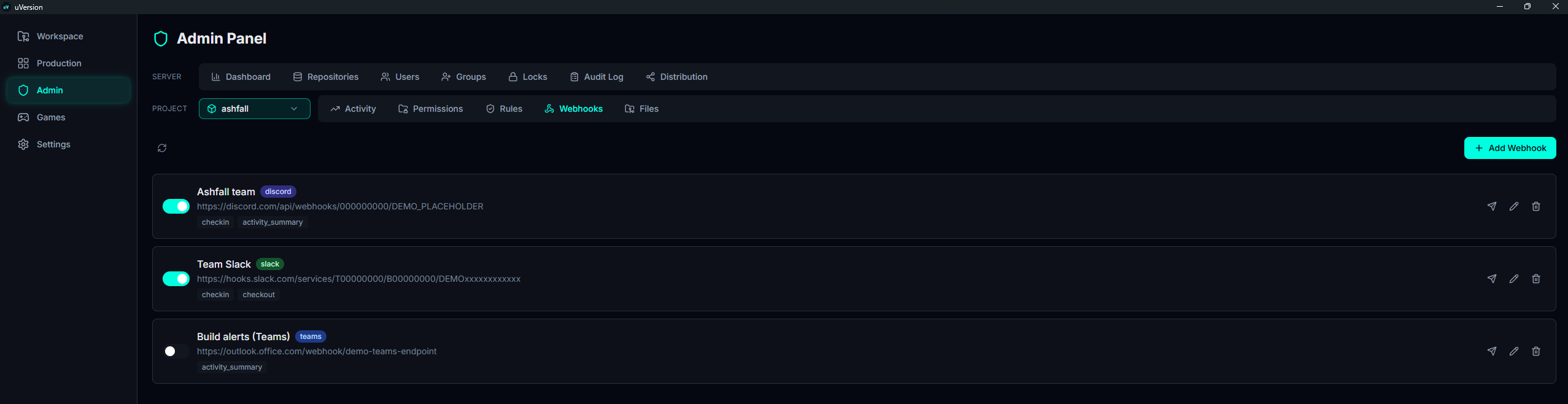
Webhooks are configured per repository, in the admin panel of the desktop client, under the Webhooks tab. A repository can have several webhooks (for example one to Discord for the whole team, one to a private Slack for the leads).
Access and roles
Managing webhooks is reserved for repository administrators: a super admin
(admin role) on any repository, or a project_admin on the repositories
they administer. Other roles do not see this tab.
Create a webhook
1. Open the Webhooks tab
In the admin panel, first choose the repository in the PROJECT row selector, then open the Webhooks tab of that same row: a webhook belongs to a repository. A repository that has none shows No webhooks configured.
2. Open the form
Click Add Webhook, at the top right of the tab. The Create Webhook window opens, empty.
3. Fill in the fields
Two fields are required, Name and URL, and at least one event must be selected in Events (these are clickable pills, not a drop-down list). The Type must match the service that the URL points to.
| Field | Value |
|---|---|
| Name | A label to find it again (e.g. Discord équipe). Required. |
| URL | The webhook URL provided by the target service. Required. See Security for refused URLs. |
| Type | discord, slack, teams or custom. |
| Events | At least one is required. In practice: checkin and activity_summary. See Events about checkout. |
| Enabled | Activation toggle (visible when editing, and from the list). |
To get the URL on the Discord side: Channel settings → Integrations → Webhooks → New Webhook → Copy URL, detailed in the tutorial below. On the Slack side: create an Incoming Webhook in the Slack app settings. On the Teams side: Connectors → Incoming Webhook on the channel.
4. Confirm, then send a test
Click Create Webhook. The webhook appears in the list, active. On its row, click the plane icon Send test: uVersion sends a test notification to the service and shows the result at the end of the row, a green check or a cross with the returned HTTP code. Do it now: it is the only way to know the URL and the type are right before relying on this webhook.

Tutorial: Discord webhook
This is the most common case. The "get the URL" part happens entirely inside Discord, just once.
On the Discord side: get the URL
- Open Discord and go to your server. Choose (or create) the text channel that will receive the notifications, for example
#uversion. - Hover over the channel name and click the gear icon ("Edit Channel").
- In the left-hand menu, open the Integrations tab.
- Click Webhooks, then New Webhook. Discord creates one automatically, attached to this channel.
- Click the created webhook to open it. Give it a name (for example
uVersion), and check that the target channel is the right one. An avatar image is optional. - Click Copy Webhook URL. The URL looks like
https://discord.com/api/webhooks/123456789/AbCdEf....
On the uVersion side: connect the URL
Run through the Create a webhook procedure above with these values:
Name a label for you (e.g. Discord équipe), URL the one you
just copied, Type discord (essential so the message goes out as a Discord
embed), Events checkin. Finish with Send test: a message should
appear in the Discord channel within a few seconds.
If the test fails with an HTTP 401 or 404 status, the URL is wrong or the webhook was
deleted on the Discord side: copy the URL again. If nothing arrives even though the test is green, check that you are looking at
the right channel and that the webhook has not been disabled in Discord.
Types and formats
The Type determines how uVersion formats the message before sending it. Choose the one that matches the service pointed to by the URL, otherwise the message will arrive malformed (or be rejected by the service).
| Type | Format sent |
|---|---|
discord | Discord embed (title, color, fields). |
slack | Slack payload (message blocks). |
teams | Microsoft Teams card (MessageCard). |
custom | JSON body fully defined by you: see Custom webhooks. |
Events
Two events are actually emitted by the server:
| Event | Triggers when… |
|---|---|
checkin | A user submits a commit to the repository. |
activity_summary | A periodic activity summary is produced by the server scheduler (daily / weekly). |
checkout: checkbox present, event never emitted
The form offers a third checkbox, checkout, meant to signal the locking of a file
(a lock is the reservation a user places on a file while they modify it).
It is declared but never emitted to date: checking it will trigger no notification.
Do not rely on it, and do not use it as the only selection: a webhook with only this event checked
will stay silent forever.
Check only what your channel needs. In practice, the useful combination is checkin for
the team's work feed, and activity_summary for a periodic recap.
Custom webhooks
With the custom type, two extra fields appear: Custom Headers (JSON)
and Custom Template (JSON). They let you integrate any service that accepts a JSON POST.
Template
The template is the JSON body that is sent. uVersion replaces the variables in double braces with the values of the event. Example:
{"text": "{{event_type}} par {{username}} dans {{repository}}"}Available variables:
| Variable | Content |
|---|---|
{{event_type}} | Event type (checkin or activity_summary). |
{{repository}} | Repository name. |
{{username}} | User who triggered the event. |
{{message}} | Commit message (for a check-in). |
{{file_count}} | Number of files involved. |
{{commit_hash}} | Commit hash. |
{{timestamp}} | Event timestamp. |
Headers
A JSON object of HTTP headers to attach to the request, for example an authentication token:
{"Authorization": "Bearer VOTRE_JETON"}
Defaults to {} (no headers). Headers reserved for transport
(host, content-length, transfer-encoding, connection)
are stripped automatically and cannot be overridden.
Test, enable, delete
Each webhook in the list offers the following actions:
- Send test (plane icon): sends a test notification to the service and shows an inline result (green check or cross). Useful to verify the URL and the type before relying on it.
- Toggle: enables / disables the webhook without deleting it.
- Edit: modify any field.
- Delete: permanent deletion (confirmation required).
Security: SSRF guard
A webhook makes an HTTP request be issued by the server. To prevent a malicious URL from being used to probe the server's internal network (SSRF attack), uVersion applies a strict guard on creation, on modification and on test:
- The scheme must be
httporhttps. Any other scheme is refused. - The hostname is resolved via DNS, and every resulting IP address is checked. The webhook
is refused if one points to a non-public address: loopback, private networks (RFC1918), link-local,
broadcast, CGNAT range
100.64.0.0/10, cloud metadata169.254.169.254, ULA / IPv6 link-local, and their IPv4-mapped-IPv6 equivalents. - HTTP redirects are not followed (so a 307 to an internal host cannot bypass the guard).
- The upstream response body is never returned to the client (no SSRF oracle).
In practice: a webhook URL must point to a public service (Discord, Slack, Teams, or
your own endpoint reachable from the Internet). A URL to localhost, a private IP
(10.x, 192.168.x, 172.16-31.x) or an internal service is refused with a
"Webhook URL refused: …" message.
Common pitfalls
The type does not match the service
Sending a Discord format to a Slack URL (or the reverse) produces a malformed message or a rejection on the service side. The Type field must match the URL. When in doubt, do a Send test.
No event checked
A webhook with no event never triggers. The client blocks saving as long as no event is selected ("At least one event is required").
Internal URL refused
If you test against a service on your own machine or your LAN, the SSRF guard refuses it. Expose the service on a public URL (or a tunnel) to use it as a webhook target.
Forgotten disabled webhook
A disabled webhook stays in the list but sends nothing. If notifications have gone silent, check the activation toggle first before suspecting the URL.